

Introduction
Creating playlists on YouTube mobile can be a great way to organize, store, and share all of your favorite music with friends and family. Whether you’re looking to create a personalized mix of tunes or just want an easy place to store all of the songs you love, learning how to make a playlist on YouTube mobile is essential.
This article will provide a step-by-step guide for creating a playlist on YouTube mobile. We’ll cover downloading the YouTube Music app, logging into your account, selecting “Your Library” from the menu, tapping on the “Playlists” tab, tapping the plus sign in the upper right corner to create a new playlist, and adding songs to your playlist by searching or browsing YouTube Music Library.
Downloading the YouTube Music App to Your Mobile Device
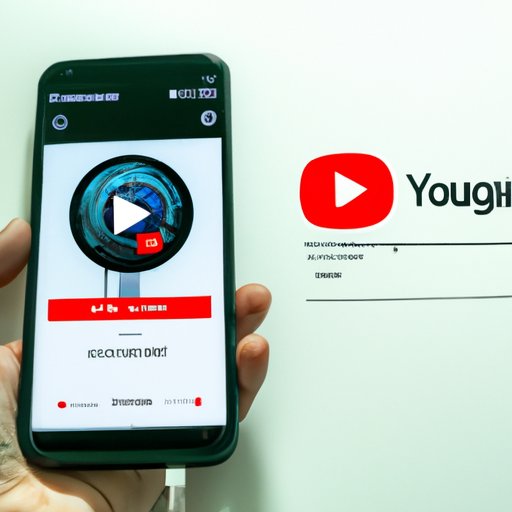
The first step to creating a playlist on YouTube mobile is to download the YouTube Music app. The app is available for both iOS and Android devices. To download the app, open the Apple App Store or Google Play Store and search for “YouTube Music.” Tap the “Install” button to begin the installation process. Once the installation is complete, tap “Open” to launch the app.
Logging Into Your YouTube Account
Once you have opened the YouTube Music app, you will need to log into your YouTube account. On the app’s home screen, tap the profile icon in the top right corner. Then, tap “Sign In.” Enter your email address and password, then tap “Sign In.” If you don’t already have a YouTube account, you can create one by tapping “Create Account” and following the on-screen instructions.
Selecting “Your Library” from the Menu
After logging into your YouTube account, you will need to select “Your Library” from the menu. To do this, tap the three horizontal lines in the top left corner of the app. Then, tap “Your Library.” This will take you to the main page of your library, where you can access all of your playlists, favorite songs, and recently played tracks.
Tapping on the “Playlists” Tab
Once you are on the main page of your library, you will need to tap on the “Playlists” tab. This tab is located at the top of the page, just below the search bar. Tapping on the “Playlists” tab will take you to a page that displays all of your existing playlists. If you don’t have any existing playlists, the page will be blank.
Tapping the Plus Sign in the Upper Right Corner to Create a New Playlist
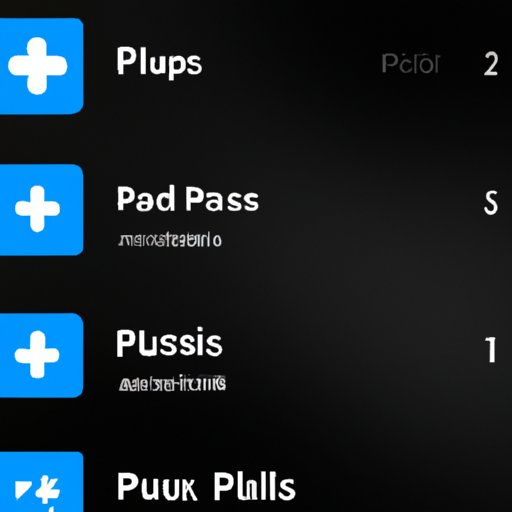
To create a new playlist, you will need to tap the plus sign in the upper right corner of the “Playlists” page. This will open a pop-up window where you can enter a name for your new playlist. Enter a name for your playlist and tap “Create.” Your new playlist will now appear on the “Playlists” page.
Adding Songs to Your Playlist by Searching or Browsing YouTube Music Library
Now that you have created a new playlist, you can start adding songs to it. To do this, you can either search for a specific song or browse YouTube Music’s library of millions of songs. To search for a song, type the title into the search bar and select the correct result from the list. To browse the library, tap the magnifying glass icon in the top right corner of the app and use the filters to narrow down your search. Once you’ve found the song you’re looking for, tap the plus sign next to it to add it to your playlist. You can repeat this process until your playlist is full.
Conclusion
Creating a playlist on YouTube mobile is an easy and convenient way to store and share all of your favorite music with friends and family. By downloading the YouTube Music app, logging into your account, selecting “Your Library” from the menu, tapping on the “Playlists” tab, tapping the plus sign in the upper right corner to create a new playlist, and adding songs to your playlist by searching or browsing YouTube Music Library, you can quickly and easily create a personal mix of tunes.
(Note: Is this article not meeting your expectations? Do you have knowledge or insights to share? Unlock new opportunities and expand your reach by joining our authors team. Click Registration to join us and share your expertise with our readers.)