
Introduction
Do you want to download music from your computer to your iPhone? It’s easy to do, and there are many different methods available. In this article, we’ll explore eight different ways to transfer music from a computer to an iPhone. We’ll cover the benefits of each method and provide step-by-step instructions so you can start listening to your favorite tunes right away.
Use iCloud Music Library
The first way to download music from a computer to an iPhone is to use Apple’s iCloud Music Library. iCloud Music Library is a cloud-based service that stores your music library so it can be accessed from any device. It allows you to access your purchased music, as well as any music you’ve uploaded to the service.
The benefits of using iCloud Music Library include the ability to access your music library from any device, the convenience of having all your music in one place, and the ability to sync your music across multiple devices. Additionally, iCloud Music Library allows you to store up to 100,000 songs, which is far more than most people will ever need.
To set up iCloud Music Library, open the Settings app on your iPhone and tap “iCloud.” Tap “Sign In” if you’re not already signed in. Then, tap “Music” and toggle the switch to turn on iCloud Music Library. Once it’s enabled, your music library will be available on all your devices.
Transfer Audio Files with iTunes
Another way to download music from a computer to an iPhone is to use iTunes. iTunes is Apple’s media player and manager, and it supports various audio file formats, including MP3, AAC, WAV, and AIFF. iTunes allows you to create playlists and organize your music library, and it also provides access to the iTunes Store, where you can purchase and download music.
The benefits of using iTunes include the ability to organize and manage your music library, the ability to purchase and download music from the iTunes Store, and the ability to sync your music across multiple devices. Additionally, iTunes allows you to easily transfer audio files from a computer to an iPhone.
To transfer audio files with iTunes, connect your iPhone to your computer with a USB cable. Open iTunes and select your iPhone from the sidebar. On the Summary page, click “Music” and then click “Sync Music.” Select the playlists or individual songs you want to transfer, and then click “Apply” to begin the transfer process.
Use Third-Party Apps
Another option for downloading music from a computer to an iPhone is to use third-party apps. There are a variety of apps available that allow you to transfer music from a computer to an iPhone, such as Dropbox, Google Drive, and File Manager Pro. These apps make it easy to transfer music from a computer to an iPhone, and they provide additional features, such as the ability to share files with other users.
The benefits of using third-party apps include the ability to quickly and easily transfer music from a computer to an iPhone, the ability to share files with other users, and the additional features they provide. Additionally, some third-party apps allow you to stream music directly from the app, so you don’t have to download the music to your device.
To download music with a third-party app, first download the app to your computer and your iPhone. Once the app is installed, you can transfer music from the computer to the iPhone by selecting the files you want to transfer and dragging them into the app. The files will then be transferred to your iPhone.
Connect Your iPhone to a Computer
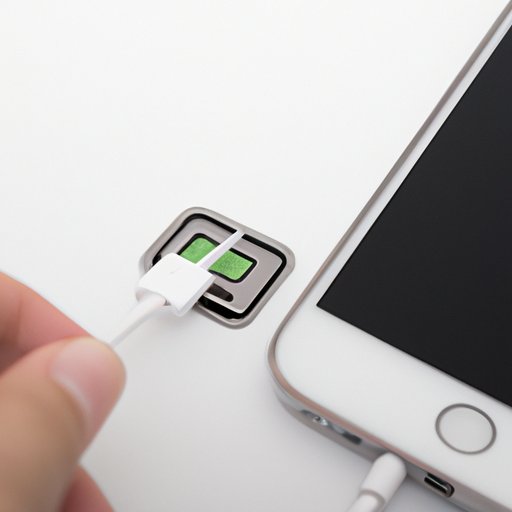
Another way to download music from a computer to an iPhone is to connect your iPhone to a computer. This method is simple and straightforward, but it requires a physical connection between the two devices. To connect your iPhone to a computer, you will need a USB cable.
The benefits of connecting your iPhone to a computer include the ability to quickly and easily transfer music from a computer to an iPhone, the convenience of not having to use a third-party app, and the ability to see the contents of your iPhone on your computer. Additionally, this method allows you to transfer large files, such as videos and photos, without having to worry about storage limits.
To connect your iPhone to a computer, simply plug the USB cable into your iPhone and your computer. Once the connection is established, you can drag and drop audio files from your computer to your iPhone. You can also use the File Explorer to view the contents of your iPhone and copy files to and from your phone.
Download Music from Online Streaming Services
Another way to download music from a computer to an iPhone is to use online streaming services. Popular streaming services such as Spotify, Apple Music, and Pandora offer millions of songs that you can download and listen to offline. Some streaming services even allow you to download entire albums and playlists.
The benefits of downloading music from online streaming services include the ability to access millions of songs, the ability to download entire albums and playlists, and the convenience of being able to listen to music anywhere, anytime. Additionally, some streaming services allow you to create personalized radio stations and playlists based on your preferences.
To download music from an online streaming service, first sign up for an account and then browse the available music. When you find a song or album you want to download, click the “Download” button and the song or album will be downloaded to your device. You can then access the downloaded music from the “Offline” section of the app.
Use AirDrop to Transfer Music
Another way to download music from a computer to an iPhone is to use AirDrop. AirDrop is a wireless technology developed by Apple that allows you to quickly and easily transfer files between devices. It works over Wi-Fi and Bluetooth, and it’s available on Macs, iPhones, and iPads running iOS 7 or later.
The benefits of using AirDrop to transfer music include the ability to quickly and easily transfer files, the convenience of not needing to use a USB cable, and the ability to transfer large files without worrying about storage limits. Additionally, AirDrop is secure and encrypted, so your data is safe.
To transfer music with AirDrop, first make sure the iPhone and the computer are connected to the same Wi-Fi network. Then, open the Photos app on your iPhone and select the files you want to transfer. Tap the Share icon, and then tap AirDrop. Select the computer you want to send the files to, and then tap “Send.” The files will then be transferred to the computer.
Use Bluetooth to Transfer Music
Finally, you can use Bluetooth to download music from a computer to an iPhone. Bluetooth is a wireless technology that allows you to transfer data between devices. It’s available on most modern computers and smartphones, and it’s a great way to quickly and easily transfer music from a computer to an iPhone.
The benefits of using Bluetooth to transfer music include the ability to quickly and easily transfer files, the convenience of not needing to use a USB cable, and the ability to transfer large files without worrying about storage limits. Additionally, Bluetooth is secure and encrypted, so your data is safe.
To transfer music with Bluetooth, first make sure the computer and the iPhone are both connected to the same Wi-Fi network. Then, open the Bluetooth settings on the computer and the iPhone. Make sure both devices are discoverable, and then select the computer from the list of available devices on the iPhone. Once the devices are paired, you can select the files you want to transfer and then tap “Send.” The files will then be transferred to the computer.
Conclusion
In conclusion, there are many different ways to download music from a computer to an iPhone. The best method for you will depend on your needs and preferences. You can use iCloud Music Library, transfer audio files with iTunes, use third-party apps, connect your iPhone to a computer, download music from online streaming services, use AirDrop, or use Bluetooth. Each method has its own benefits, and with the step-by-step instructions provided in this article, you’ll be able to start listening to your favorite tunes in no time.
(Note: Is this article not meeting your expectations? Do you have knowledge or insights to share? Unlock new opportunities and expand your reach by joining our authors team. Click Registration to join us and share your expertise with our readers.)