
Introduction
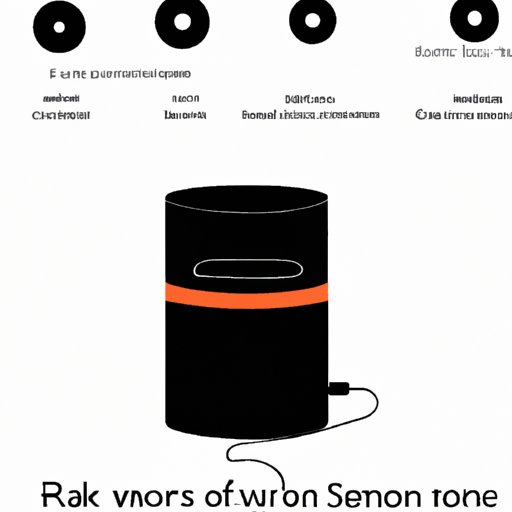
Are you having problems getting Alexa to play music? You’re not alone. Many users have encountered issues with their Amazon Alexa devices refusing to play music when asked. Whether you’re trying to listen to your favorite playlist or new podcast episode, it can be incredibly frustrating when Alexa won’t cooperate. In this article, we will explore why Alexa isn’t playing music, common issues that cause this problem, troubleshooting steps to resolve any issues, as well as exploring other ways to enjoy music through Alexa.
Identifying Common Issues that Cause Alexa Not to Play Music
There are a few common issues that can lead to Alexa not playing music. Before attempting any troubleshooting steps, it is important to identify what is causing the problem. The most common causes of Alexa not playing music include:
Compatible Music Services
The first step in determining why Alexa is not playing music is to check if the service you are using is compatible with Alexa. According to Amazon, Alexa supports over 70 streaming services, including Apple Music, Spotify, Pandora, Amazon Music, and more. If you are trying to stream content from an unsupported service, Alexa will not be able to play your requested music.
Network and Connection Issues
If your Alexa device is connected to an unstable network or has poor connection, it may be unable to access and play music. To ensure optimal performance, make sure your device is connected to a reliable Wi-Fi network with a strong signal. Additionally, confirm that your Alexa device is up to date with the latest software version.
Device Settings
Sometimes, Alexa may not be able to play music due to incorrect device settings. For example, if the “Do Not Disturb” mode is enabled on your device, it will prevent Alexa from playing music. To check your device settings, open the Alexa app on your mobile device and navigate to “Settings”. From there, you can adjust any settings that may be preventing Alexa from playing music.
Troubleshooting Steps to Resolve Alexa Music Playing Issues
Once you have identified the cause of your Alexa not playing music issue, you can begin troubleshooting. Here are some steps you can take to try and resolve the issue:
Check Compatible Music Services
As mentioned earlier, the first step is to ensure that the music service you are trying to use is compatible with Alexa. You can find a full list of compatible music services on the Alexa Supported Music Services page.
Ensure Proper Network and Connection
Next, check your network and connection. Make sure your device is connected to a reliable Wi-Fi network with a strong signal. Additionally, confirm that your Alexa device is up to date with the latest software version.
Adjust Device Settings
Finally, review your device settings to ensure that nothing is preventing Alexa from playing music. Open the Alexa app on your mobile device and navigate to “Settings”. From there, you can adjust any settings that may be preventing Alexa from playing music.
Exploring Alternatives to Enjoy Music through Alexa
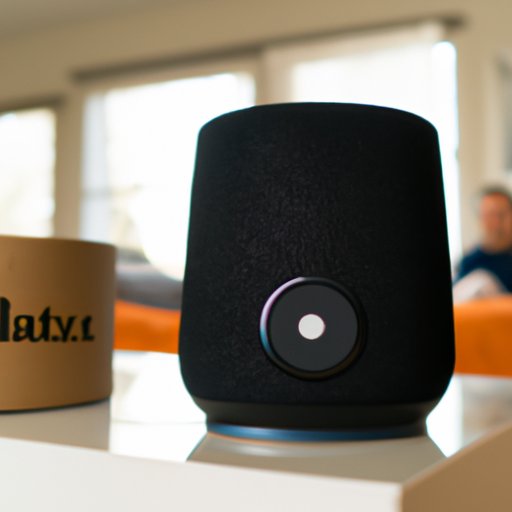
If you are still unable to get Alexa to play music, there are still plenty of other ways to enjoy music through your Alexa device. Here are some alternative solutions to consider:
Digital Music Library
If you have a digital music library, you can link it to your Alexa device and ask Alexa to play any song in your library. You can upload your music library to Amazon Music or link your account with other services like iTunes or Google Play Music.
Podcasts
In addition to streaming music, you can also ask Alexa to play podcasts. Alexa has access to a wide range of popular podcasts, including NPR, BBC, TED Talks, and more. You can ask Alexa to play the latest episode of your favorite podcast or search for new ones.
Other Streaming Services
If you don’t want to use Amazon Music or other streaming services, you can also ask Alexa to play music from other services like YouTube, SoundCloud, and iHeartRadio. You can even ask Alexa to play radio stations from around the world.
Analyzing Potential Reasons for Alexa Music Malfunctions
If you’ve tried all the troubleshooting steps but Alexa still won’t play music, it may be time to investigate the potential causes of the issue. There are several possible explanations for why Alexa may be malfunctioning, including:
Software Glitches
Sometimes, software glitches can cause Alexa to malfunction. It is possible that Alexa’s software is out of date or corrupted, which can lead to issues with music playback. To fix this issue, try resetting or restarting your Alexa device.
Hardware Malfunction
It is also possible that the hardware inside your Alexa device is malfunctioning, which could lead to music playback issues. If this is the case, it may be necessary to replace the device.
Incorrect Device Setup
Finally, incorrect setup of the device itself could be causing the issue. Make sure that your device is set up correctly and that the power source is functioning properly.
Investigating How to Restore Alexa’s Music Playing Ability
If you’ve identified the cause of the issue and attempted all the troubleshooting steps, but still cannot get Alexa to play music, there are a few additional things you can try to restore the music playing ability of your Alexa device:
Resetting Alexa
One way to restore Alexa’s music playing ability is to reset the device. To do this, open the Alexa app on your mobile device and go to “Settings”. From there, select “Device Options” and then “Reset”. This will reset all settings and should restore the music playing ability of your Alexa device.
Restarting the Device
If resetting the device does not work, you can try restarting the device. To do this, simply unplug the device from the power source and then plug it back in after a few minutes. This should restore the music playing ability of your Alexa device.
Contacting Customer Support
Finally, if none of the above steps work, you can contact customer support. Amazon’s customer service team can provide further assistance and help you restore the music playing ability of your Alexa device.
Conclusion
If your Alexa device is not playing music, there are several possible causes. Common issues that can lead to Alexa not playing music include incompatible music services, network and connection issues, and device settings. To resolve these issues, you can check compatible music services, ensure proper network and connection, and adjust device settings. Additionally, there are other ways to enjoy music through Alexa, such as linking a digital music library, playing podcasts, and using other streaming services. If troubleshooting steps fail to resolve the issue, you can investigate potential causes such as software glitches, hardware malfunctions, and incorrect device setup. Finally, if all else fails, you can try resetting Alexa, restarting the device, or contacting customer support.
In conclusion, it can be incredibly frustrating when Alexa won’t play music. However, by identifying the cause of the issue and following the appropriate troubleshooting steps, you can usually restore the music playing ability of your Alexa device.
(Note: Is this article not meeting your expectations? Do you have knowledge or insights to share? Unlock new opportunities and expand your reach by joining our authors team. Click Registration to join us and share your expertise with our readers.)