
Introduction
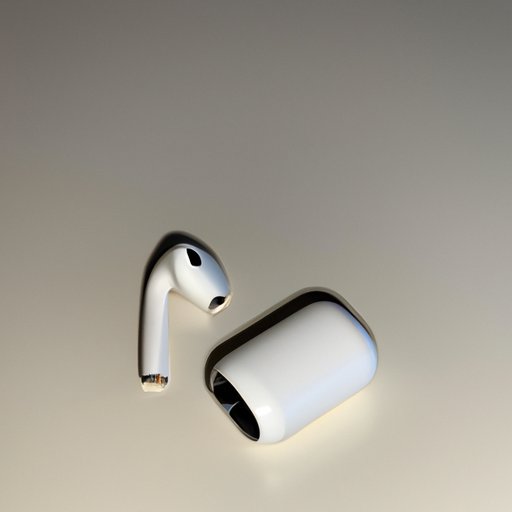
It’s frustrating when only one of your AirPods plays music. Whether it’s a sudden issue or something that’s been going on for a while, it’s important to understand what could be causing the issue and how you can fix it. In this article, we explore why music may only be playing out of one of your AirPods and provide a comprehensive guide on how to troubleshoot and resolve single AirPod audio problems.
Troubleshooting Tips to Fix When One AirPod Stops Playing Music
Before investigating the possible causes for why only one of your AirPods plays music, there are several simple troubleshooting steps you can take to try and fix the issue. The following tips can help you quickly resolve the issue and get your AirPods back up and running.
Check your Bluetooth Connection
One of the most common reasons why only one of your AirPods is playing sound is because the Bluetooth connection is not working properly. To fix this, make sure that your device is in range and that both AirPods are connected to your device. If they aren’t, try re-pairing them.
Reset Your AirPods
Another simple solution is to reset your AirPods. This can be done by pressing and holding the setup button on the back of the charging case for at least 15 seconds. Once the light on the case turns orange, your AirPods have been successfully reset and you should be able to hear sound coming from both of them again.
Check for Audio Balance Settings
If you’re still having issues with only one AirPod playing sound, check your device settings to make sure the audio balance is set correctly. On an iPhone, go to Settings > Accessibility and then tap Audio/Visual. Here, you can adjust the Left/Right balance to make sure both AirPods are playing sound.

How to Diagnose and Resolve Issues with One of Your AirPods Not Playing Sound
If the above tips don’t work, there are a few more advanced steps you can take to diagnose and resolve the issue. The following steps will help you identify the underlying cause and get your AirPods working properly again.
Run a Sound Test
The first step is to run a sound test to see if the issue is with the AirPods or your device. To do this, play a song on your device and then switch each AirPod between the left and right ears. If the sound switches to the opposite ear when you switch the AirPod, then the issue is likely with your device and not the AirPods.
Check for Firmware Updates
If the sound test indicates that the issue is with the AirPods, then you should check for any available firmware updates. To do this, go to the Bluetooth settings on your device and select the AirPods. Here, you should see an option to update the firmware.
Clean the AirPods
Another potential issue is dirt or debris stuck in the speaker mesh. To clean the AirPods, use a soft, dry cloth to gently wipe away any dirt or debris. If the issue persists, try using compressed air to blow out any dust or debris from the speaker mesh.
What Causes Only One AirPod to Play Music?
Now that we’ve gone through some basic troubleshooting steps, let’s explore the possible causes for why only one of your AirPods is playing music. There are a few potential causes that could be causing the issue, including battery issues, dirt in the speaker mesh, water damage, and hardware defects.
Battery Issues
Your AirPods rely on battery power to operate, so if one of your AirPods isn’t playing sound, it could be due to a low battery. Try putting both AirPods in the charging case and leave them for a few minutes. Then, remove them and see if the issue has been resolved.
Dirt in the Speaker Mesh
Another potential cause is dirt or debris stuck in the speaker mesh. This can prevent sound from coming out of the AirPod, so it’s important to keep the speaker mesh clean. Use a soft, dry cloth to gently wipe away any dirt or debris.
Water Damage
Water damage can also prevent sound from coming out of one of your AirPods. If your AirPods were recently exposed to water, they may need to be dried out before they will work properly again. Try leaving them in a warm, dry place for a few hours and then see if the issue has been resolved.
Hardware Defects
Finally, hardware defects can cause only one of your AirPods to play music. If none of the other troubleshooting steps have worked, then it’s likely that the issue is due to a hardware defect and you should contact Apple Support for assistance.

Exploring the Possible Reasons Why Only One AirPod Plays Music
Now that we’ve explored some of the potential causes for why only one of your AirPods is playing music, let’s look at some of the possible reasons why this might be happening. From software glitches to poor Bluetooth connectivity, there are a number of factors that could be contributing to the issue.
Software Glitches
Sometimes, software glitches can cause only one of your AirPods to play music. To fix this, try restarting your device and then reconnecting your AirPods. You can also try updating your device’s operating system or checking for any available firmware updates for your AirPods.
Volume Control Issues
Another potential issue is that the volume control on one of your AirPods may be malfunctioning. To fix this, try adjusting the volume on your device and then checking to see if both AirPods are playing sound. If not, try resetting your AirPods and then reconnecting them to your device.
Poor Bluetooth Connectivity
Finally, poor Bluetooth connectivity can also cause only one of your AirPods to play music. To fix this, try moving your device closer to your AirPods and then reconnecting them. You can also try resetting your AirPods and then pairing them with your device again.

A Guide to Fixing Single AirPod Audio Problems
If you’re still having issues with only one AirPod playing sound, there are a few more steps you can take to try and fix the issue. The following guide will help you troubleshoot and resolve single AirPod audio problems.
Check Your Audio Settings
The first step is to check your device’s audio settings. Make sure that the volume is set correctly and that the balance is set to “equal”. Additionally, check the Bluetooth settings to make sure that both AirPods are connected to your device.
Test Your AirPods
Next, try playing a song on your device and then switch each AirPod between the left and right ears. If the sound switches to the opposite ear when you switch the AirPod, then the issue is likely with your device and not the AirPods.
Check for Updates
If the sound test indicates that the issue is with the AirPods, then you should check for any available firmware updates. To do this, go to the Bluetooth settings on your device and select the AirPods. Here, you should see an option to update the firmware.
Clean and Dry the AirPods
Another potential issue is dirt or debris stuck in the speaker mesh. To clean the AirPods, use a soft, dry cloth to gently wipe away any dirt or debris. If the issue persists, try using compressed air to blow out any dust or debris from the speaker mesh.
Reset Your AirPods
If none of the above steps have worked, then try resetting your AirPods. This can be done by pressing and holding the setup button on the back of the charging case for at least 15 seconds. Once the light on the case turns orange, your AirPods have been successfully reset and you should be able to hear sound coming from both of them again.
Contact Apple Support
Finally, if all else fails, you can contact Apple Support for assistance. They can help you troubleshoot the issue and determine if the problem is due to a hardware defect or something else.
Conclusion
In this article, we explored why music may only be playing out of one of your AirPods and provided a comprehensive guide on how to troubleshoot and resolve single AirPod audio problems. We discussed the possible causes for why only one of your AirPods is playing music, such as battery issues, dirt in the speaker mesh, water damage, and hardware defects. We also provided a guide to fixing single AirPod audio problems, which includes steps such as checking your audio settings, testing your AirPods, checking for updates, cleaning and drying the AirPods, resetting your AirPods, and contacting Apple Support for assistance.
By following the steps outlined in this article, you should be able to identify the underlying cause of the issue and get your AirPods working properly again. If you’re still having issues, then contact Apple Support for further assistance.
Summary of Main Points
In this article, we explored why music may only be playing out of one of your AirPods and provided a comprehensive guide on how to troubleshoot and resolve single AirPod audio problems. We discussed the possible causes for why only one of your AirPods is playing music, such as battery issues, dirt in the speaker mesh, water damage, and hardware defects. We also provided a guide to fixing single AirPod audio problems, which includes steps such as checking your audio settings, testing your AirPods, checking for updates, cleaning and drying the AirPods, resetting your AirPods, and contacting Apple Support for assistance.
Final Thoughts
Having only one of your AirPods play music can be frustrating, but by understanding the potential causes and following the troubleshooting steps outlined in this article, you should be able to identify the underlying cause of the issue and get your AirPods working properly again. If you’re still having issues, then contact Apple Support for further assistance.
(Note: Is this article not meeting your expectations? Do you have knowledge or insights to share? Unlock new opportunities and expand your reach by joining our authors team. Click Registration to join us and share your expertise with our readers.)