
Introduction
Are you curious about how to watch movies on Apple TV? With so many options for streaming movies and television shows today, it can be confusing to figure out which device is right for you. Fortunately, Apple TV makes it easy to watch movies straight from your own living room. In this article, we’ll provide a step-by-step guide for connecting your Apple TV to your television or monitor, downloading and installing the Apple TV app, purchasing and renting movies from the iTunes Store, streaming movies from third-party apps, and exploring free movie resources.
Connecting Apple TV to a TV or Monitor
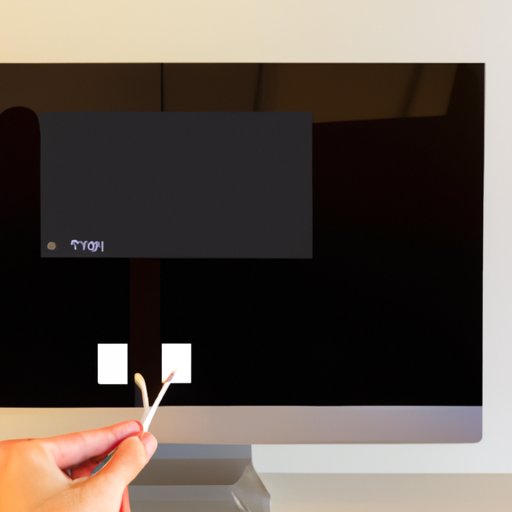
The first step in watching movies on Apple TV is connecting the device to your television or monitor. To do this, you’ll need an HDMI cable, an Apple TV power cord, and an outlet. Once you have all of these items, follow these steps:
- Connect one end of the HDMI cable to your Apple TV and the other end to your television or monitor.
- Connect the Apple TV power cord to the back of the device and plug it into an outlet.
- Turn on your television or monitor and use your remote control to select the correct HDMI input.
- Wait for the Apple TV home screen to appear.
You’re now ready to start streaming movies on your Apple TV.
Downloading and Installing the Apple TV App
Before you can start watching movies on your Apple TV, you’ll need to download and install the Apple TV app. The app is available on iOS devices running iOS 12.3 or later, as well as Macs running macOS Catalina 10.15 or later. Here are the system requirements for the Apple TV app:
- iOS 12.3 or later
- macOS Catalina 10.15 or later
- tvOS 12.3 or later
Once you’ve determined that your device meets the system requirements, you can proceed with downloading and installing the app. Here’s how to do it:
- Open the App Store on your device.
- Search for the Apple TV app.
- Tap Get to download the app.
- Once the app has downloaded, open it.
- Sign in with your Apple ID and password.
Now that you’ve installed the Apple TV app, you can start streaming movies.
Purchasing and Renting Movies from the iTunes Store
One of the easiest ways to watch movies on Apple TV is by purchasing or renting them from the iTunes Store. You can purchase movies outright or rent them for a 48-hour period. To purchase or rent movies from the iTunes Store, follow these steps:
- Open the Apple TV app.
- Select the iTunes Store tab.
- Browse the selection of movies and select the one you’d like to purchase or rent.
- Select either Rent or Buy.
- Enter your Apple ID and password to complete the transaction.
Once you’ve purchased or rented the movie, it will appear in your Library. You can then start watching the movie on your Apple TV.
Streaming Movies from Third-Party Apps
In addition to purchasing and renting movies from the iTunes Store, you can also stream movies from third-party apps. Apple TV is compatible with a variety of streaming services, including Netflix, Hulu, Amazon Prime Video, and more. To set up and use these services, follow these steps:
- Open the App Store on your Apple TV.
- Search for the streaming service you’d like to use.
- Select the streaming service and tap Get.
- Once the app has downloaded, open it.
- Sign in with your account information.
- Browse the selection of movies and select the one you’d like to watch.
- Start streaming the movie.
Exploring Free Movie Resources
If you’re looking for ways to watch movies without spending money, there are several free movie resources available. Many streaming services offer a selection of free movies, and some networks even offer free movies on their websites. Additionally, you can find free movies on YouTube, Vimeo, and other video-sharing sites. Here are a few examples of free movie sources:
- Crackle – Crackle is a streaming service owned by Sony Pictures Entertainment that offers a selection of free movies.
- Tubi – Tubi is another streaming service that offers a selection of free movies.
- ABC – ABC offers a selection of free movies on its website.
- YouTube – YouTube has a selection of free movies in its Movies & Shows section.
- Vimeo – Vimeo is a video-sharing site that offers a selection of free movies.
By exploring these free movie resources, you can watch movies on Apple TV without spending any money.
Conclusion
Watching movies on Apple TV is a great way to enjoy your favorite movies and television shows from the comfort of your own living room. In this article, we provided a step-by-step guide for connecting your Apple TV to your television or monitor, downloading and installing the Apple TV app, purchasing and renting movies from the iTunes Store, streaming movies from third-party apps, and exploring free movie resources. With this comprehensive guide, you now have all the necessary information for watching movies on Apple TV.
(Note: Is this article not meeting your expectations? Do you have knowledge or insights to share? Unlock new opportunities and expand your reach by joining our authors team. Click Registration to join us and share your expertise with our readers.)