
Introduction
Watching movies on your iPhone can be a great way to pass the time while you’re on the go. But if you want to watch movies that you’ve purchased or rented from iTunes, it can be a bit of a challenge. In this article, we’ll explore the different ways you can watch iTunes movies on your iPhone, including streaming with the Apple TV app, downloading directly to your device, and more.
Use Apple TV App to Stream Movies from iTunes
The easiest way to watch iTunes movies on your iPhone is to use the Apple TV app. This app allows you to stream movies and TV shows from your iTunes library directly to your device. To get started, simply locate and download the Apple TV app from the App Store. Once it’s installed, you can log in with your Apple ID and begin browsing your library.
To select a movie to watch, simply tap on the movie’s poster image. This will open up a screen with more information about the movie, including a synopsis, cast list, and more. You can also view trailers and read reviews before making your decision. When you’re ready to watch, just tap the “Play” button and the movie will start streaming.
Download iTunes Movie to iPhone
If you want to watch a movie without an internet connection, you can also download it directly to your device. To do this, you’ll need to purchase or rent the movie from the iTunes Store. Once you’ve done that, you can find it in your library and select the “Download” option. The movie will then be saved to your device, and you can watch it anytime, even without an internet connection.
Use AirPlay to Cast Movie from Mac to iPhone
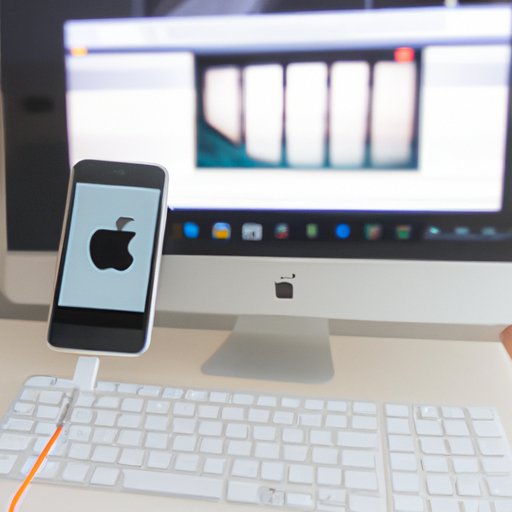
If you have a Mac computer, you can also use the AirPlay feature to stream movies from your Mac to your iPhone. To do this, you’ll first need to make sure both devices are connected to the same Wi-Fi network. Then, open the movie file on your Mac and select the “AirPlay” icon. This will open a menu where you can select your iPhone as the destination device. Once you’ve done that, the movie will start streaming to your iPhone.
Transfer Movie File from Computer to iPhone Using USB Cable
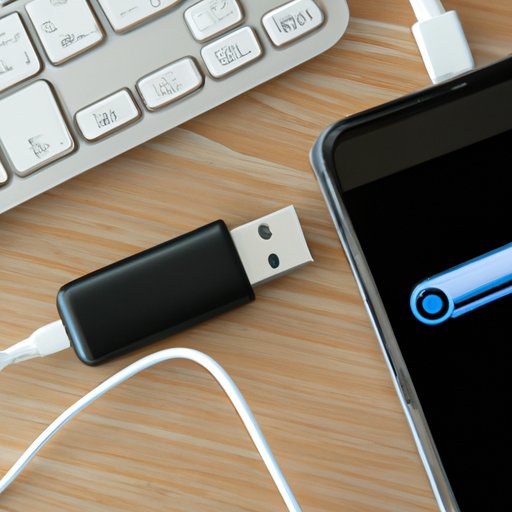
If you don’t have access to Wi-Fi, you can also transfer the movie file from your computer to your iPhone using a USB cable. To do this, you’ll need a Lightning to USB cable, which you can purchase from the Apple Store or online. Once you have the cable, connect it to your computer and iPhone and open iTunes on your computer. From there, you can select the movie file and drag it into the “Movies” section of your iTunes library. This will copy the file to your iPhone, and you can watch it anytime.
Use HDMI Cable to Connect iPhone to TV or Monitor
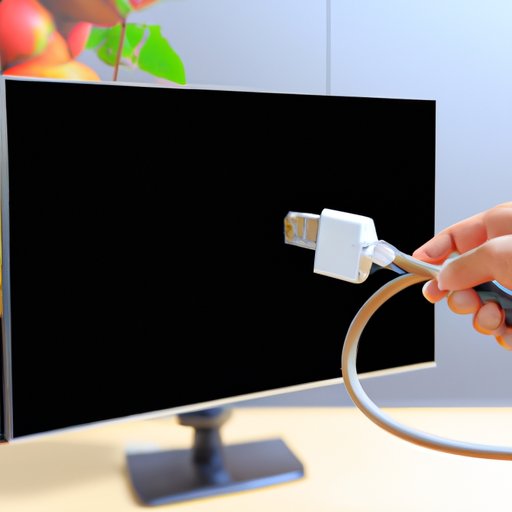
You can also use an HDMI cable to connect your iPhone to a TV or monitor. This will allow you to watch movies from your device on a bigger screen. To do this, you’ll need an HDMI cable, which you can purchase from the Apple Store or online. Once you have the cable, connect it to your device and TV or monitor. Then, open the movie file on your iPhone and select the “HDMI” option. This will send the video signal to your TV or monitor, and you can watch the movie on the bigger screen.
Use Third-Party App to Sync Movie File between Mac and iPhone
If you don’t have a USB cable or access to Wi-Fi, you can also use a third-party app to sync the movie file between your Mac and iPhone. One popular app for this purpose is iTransfer, which is available for both Mac and Windows computers. This app allows you to transfer a variety of files, including movies, music, photos, and more. To use it, simply download the app and follow the instructions to sync the movie file between your Mac and iPhone.
Rent or Purchase Movie Directly from iTunes Store on iPhone
Finally, you can also rent or purchase movies directly from the iTunes Store on your iPhone. To do this, simply open the iTunes Store app on your device and search for the movie you want to watch. When you’ve found it, you can rent or purchase it and it will be added to your library. Once it’s downloaded, you can watch it anytime, even without an internet connection.
Conclusion
Watching movies from iTunes on your iPhone doesn’t have to be a hassle. With the right tools and knowledge, you can easily stream, download, or transfer movies to your device. Whether you’re using the Apple TV app, AirPlay, a USB cable, an HDMI cable, or a third-party app, you can find a method that works best for you.
Just remember to double check all your settings before streaming or transferring any movie files. That way, you can ensure that everything is working properly and you can enjoy your movie without any interruptions.
(Note: Is this article not meeting your expectations? Do you have knowledge or insights to share? Unlock new opportunities and expand your reach by joining our authors team. Click Registration to join us and share your expertise with our readers.)