
Introduction
Recording on an iPhone while playing music can be a tricky task. It requires more than just hitting the “record” button; it involves understanding the various apps and accessories that can help you achieve the desired result. This article provides a comprehensive overview of how to record on iPhone while playing music, covering a range of solutions from the Voice Memos app to the GarageBand app.
Use the Voice Memos App
The Voice Memos app is the most basic solution for recording on an iPhone while playing music. The app comes preinstalled on all iPhones, so no additional downloads are required. To access the app, simply go to your home screen and tap on the Voice Memos icon.
Once you open the Voice Memos app, you will be presented with a simple user interface. At the bottom of the screen, there are three buttons: Record, Pause, and Stop. To start recording, press the Record button and then play the music you want to record. When you are finished recording, press the Stop button.
The main benefit of using the Voice Memos app is its simplicity. It is easy to use and does not require any additional hardware or software. However, the quality of the recordings may not be as good as recordings made with other methods. Additionally, the app does not allow you to edit the recordings or add effects.
If you are having trouble getting the Voice Memos app to work properly, try restarting your phone or resetting your settings. If the problem persists, contact Apple Support for further assistance.
Connect an Audio Interface to Your iPhone
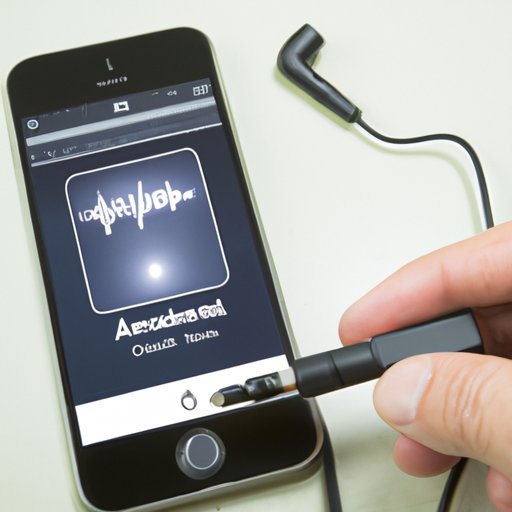
An audio interface is a device that allows you to record sound directly from your iPhone. An audio interface connects to your iPhone via USB or Lightning port and can be used to record both music and voice. It is important to note that some audio interfaces require additional software to be installed on your computer in order to function properly.
To connect an audio interface to your iPhone, first make sure that the audio interface is compatible with your phone. Then, connect the audio interface to your iPhone using either a USB or Lightning cable. Once the connection is established, launch the audio interface’s accompanying software (if applicable) and follow the instructions to begin recording.
One of the major benefits of using an audio interface is the improved sound quality. Audio interfaces typically provide much better sound quality than the Voice Memos app, making them ideal for recording professional-sounding music. Additionally, audio interfaces usually come with built-in effects and editing capabilities, allowing you to customize your recordings.
Record with a Digital Audio Workstation (DAW)
A digital audio workstation (DAW) is a specialized software program designed for recording and producing music. DAWs provide a variety of tools and features that allow you to create high-quality recordings. In addition to recording audio, DAWs also allow you to mix and edit tracks, add effects, and create loops.
To record with a DAW on your iPhone, first download and install the DAW of your choice. Most DAWs are available for free, but some may require a paid subscription. Once the DAW is installed, connect an audio interface to your iPhone (if necessary) and launch the DAW. Follow the instructions provided by the DAW to begin recording.
The main benefit of using a DAW is the level of control it provides. DAWs offer a wide range of features and tools that allow you to customize your recordings and create professional-sounding songs. Additionally, DAWs usually come with built-in effects and plugins, allowing you to add depth and complexity to your recordings.
Use a Third-Party App
Third-party apps are specialized apps that are designed to provide additional features and functionality to your iPhone. There are a number of third-party apps available that allow you to record music while playing it on your iPhone. These apps usually provide a range of features and tools, such as the ability to add effects, mix and edit tracks, and create loops.
To use a third-party app, simply download and install the app of your choice. Make sure to read the reviews and check the system requirements before downloading. Once the app is installed, launch it and follow the instructions provided to begin recording.
The main benefit of using a third-party app is the increased flexibility it offers. Third-party apps usually provide a wide range of features and tools that allow you to customize your recordings and create professional-sounding songs. Additionally, most third-party apps are available for free, making them a great option for those on a budget.
Utilize the iOS Music App
The iOS Music app is a built-in app that comes preinstalled on all iPhones. The app allows you to access and play your music library, as well as record audio and mix and edit tracks. To access the iOS Music app, simply go to your home screen and tap on the Music icon.
Once you open the iOS Music app, you will be presented with a simple user interface. At the bottom of the screen, there are two buttons: Record and Stop. To start recording, press the Record button and then play the music you want to record. When you are finished recording, press the Stop button.
The main benefit of using the iOS Music app is its ease of use. The app is simple to use and does not require any additional hardware or software. Additionally, the iOS Music app allows you to mix and edit tracks, as well as add effects to your recordings.
Use the GarageBand App
GarageBand is a popular music production app developed by Apple. The app allows you to create high-quality recordings with ease. It provides a wide range of features and tools, including the ability to record audio, mix and edit tracks, add effects, and create loops.
To use the GarageBand app, first download and install the app from the App Store. Once the app is installed, launch it and follow the instructions provided to begin recording. You can also connect an audio interface to your iPhone (if necessary) to improve the sound quality of your recordings.
The main benefit of using the GarageBand app is the level of control it provides. The app offers a wide range of features and tools that allow you to customize your recordings and create professional-sounding songs. Additionally, the GarageBand app is available for free, making it a great option for those on a budget.
Conclusion
Recording on an iPhone while playing music can be a challenging task. Fortunately, there are a number of solutions available, ranging from the Voice Memos app to the GarageBand app. This article has provided a comprehensive overview of how to record on iPhone while playing music, covering a range of solutions from the Voice Memos app to the GarageBand app.
(Note: Is this article not meeting your expectations? Do you have knowledge or insights to share? Unlock new opportunities and expand your reach by joining our authors team. Click Registration to join us and share your expertise with our readers.)