
Putting Music Behind a Video
Adding music to your videos can be a great way to enhance the visuals and create an emotional impact. Whether you’re creating a promotional video, a documentary, or a video for social media, having the right music can make all the difference. But how do you go about putting music behind a video?
In this article, we’ll guide you through the process of adding music to a video using video editing software. We’ll cover everything from choosing the right music track to synchronizing it with the visuals, adjusting the volume, and exporting and sharing the final video.

Research Video Editing Software That Supports Adding Music
The first step in adding music to a video is to find the right video editing software. There are several different types of video editing software available, ranging from free and open source programs to commercial programs with advanced features. The type of program you choose should depend on your needs and budget.
For example, if you’re just starting out, a free and open source program like Blender or Kdenlive might be a good choice. Both of these programs have basic features for editing video, including the ability to add music. On the other hand, if you’re looking for more advanced features such as color correction, motion tracking, and 3D animation, then a commercial program like Adobe Premiere Pro or Final Cut Pro might be a better choice.
No matter which program you choose, it’s important to make sure that it supports adding music. Many programs have tools specifically designed for adding music, such as music libraries, sound effects, and soundtracks. It’s also important to check the compatibility of the file formats you plan to use, as some programs may not support certain types of files.
Choose a Music Track to Enhance the Visuals
Once you’ve chosen the right video editing software, it’s time to select the music track that will best enhance the visuals. When choosing a music track, it’s important to consider the mood, tone, and length of the video. For example, if you’re creating a video about a romantic dinner, you might want to choose a slow and mellow track; whereas if you’re creating a video about a wild party, you might want to choose an upbeat and energetic track.
It’s also important to consider the length of the music track. If the track is too short, it won’t fit the length of the video; and if it’s too long, it will overpower the visuals. To ensure that the music track is the right length, you can use the trimming and looping tools in the video editing software.
Import the Music into the Video Editing Software
Once you’ve selected the music track, it’s time to import it into the video editing software. Most programs have an “import” feature that allows you to easily add files from your computer or other sources. However, it’s important to make sure that the file format is compatible with the program. If the file format is not supported, you may need to convert it to a compatible format before importing it.
You can also use music libraries or sound effect libraries within the program. These libraries often contain thousands of tracks, so you’re sure to find something that fits the mood and tone of the video. For example, Adobe Premiere Pro has a built-in library of royalty-free music and sound effects that you can use in your projects.
Synchronize the Music with the Video
Once you’ve imported the music track, it’s time to synchronize it with the video. This is where the timing tools in the video editing software come in handy. Most programs have tools for adjusting the speed and tempo of the music, as well as tools for setting specific points in the music track where it should start and end.
It’s important to get the timing right, as this will ensure that the music and visuals are in sync. If the music is off-beat, it can detract from the overall impact of the video. So take your time and experiment until you get the timing just right.
Adjust the Volume of the Music
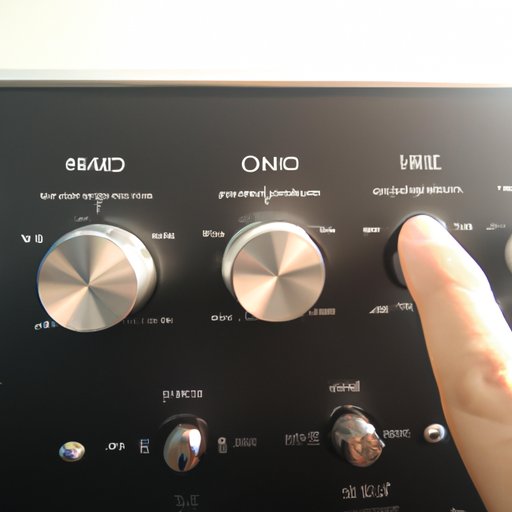
Once you’ve synchronized the music with the video, it’s time to adjust the volume. This is important, as the volume of the music should match the other audio elements in the video, such as dialogue and sound effects. If the music is too loud or too soft, it will distract from the other audio elements.
Most video editing programs have tools for adjusting the volume of the music, as well as tools for balancing the different audio elements in the video. You can also use equalization and compression tools to make sure that the audio elements are properly balanced.

Export and Share the Final Video
Once you’ve adjusted the volume of the music and balanced the audio elements, it’s time to export and share the final video. Most video editing programs have an “export” feature that allows you to save the video in various formats, such as MP4, MOV, and AVI. It’s important to optimize the video for different platforms, such as YouTube, Vimeo, and Facebook, as each platform has its own set of requirements.
Once you’ve exported the video, you can share it on your website, blog, or social media channels. You can also upload it to video hosting sites like YouTube, Vimeo, and Dailymotion. Or you can embed it directly into your website or blog post.
Conclusion
Adding music to a video can be a great way to enhance the visuals and create an emotional impact. In this article, we’ve provided a step-by-step guide to adding music to a video using video editing software. We’ve covered everything from researching video editing software to choosing a music track, importing the music, synchronizing it with the video, adjusting the volume, exporting and sharing the final video.
Now that you know how to put music behind a video, why not give it a try? Experiment with different music tracks and see what works best for your project.
(Note: Is this article not meeting your expectations? Do you have knowledge or insights to share? Unlock new opportunities and expand your reach by joining our authors team. Click Registration to join us and share your expertise with our readers.)