
Introduction
As an Apple user, you may be used to downloading music through iTunes. However, there are other ways of getting your favorite tunes onto your iPhone without having to use iTunes. In this article, we will explore different methods of downloading music on iPhone without iTunes, such as using a third-party music streaming app, downloading songs directly from the web, using a cloud storage service, and more. Read on for a comprehensive guide on how to download music on iPhone without iTunes.
Use a Third-Party Music Streaming App
The most popular way to download music on your iPhone without iTunes is to use a third-party music streaming app. These apps provide access to millions of songs, albums, and playlists, and they’re available for free or at a low cost. Popular streaming apps include Spotify, Apple Music, YouTube Music, and Amazon Music.
To download music from a streaming app, simply open the app and search for the song or artist you want to listen to. Once you find it, click the “Download” button next to the song and wait for it to finish downloading. After it’s done, you can listen to the song anytime you want, even when you don’t have an internet connection.
Download Songs Directly from the Web
Another way to download music on iPhone without iTunes is to download songs directly from the web. You can do this by using a web browser like Safari, Chrome, or Firefox. Simply open the browser and search for the song or artist you want to listen to. Once you find it, look for a “Download” button or link and click on it. The song will then begin downloading to your device.
Keep in mind that you may need to install a third-party app in order to play the downloaded song. For example, if you download an .mp3 file, you will need to install an app like VLC Media Player that supports .mp3 files. Once you install the app, you can open the song in it and listen to it anytime you want.
Use a Cloud Storage Service
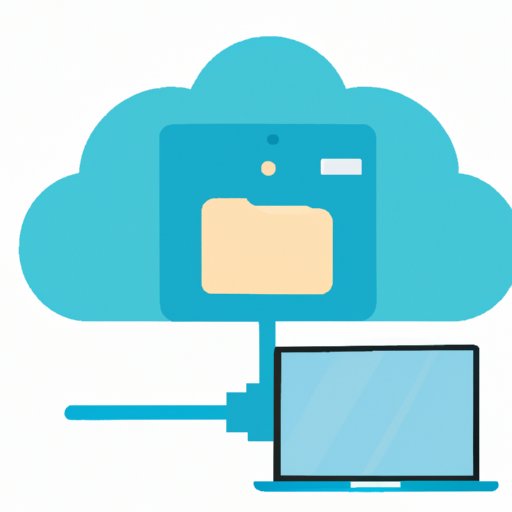
Cloud storage services like Dropbox and Google Drive are great for storing and accessing files from anywhere. You can also use them to transfer music to your iPhone without iTunes. All you have to do is upload the music files you want to transfer to your cloud storage account. Then, open the cloud storage app on your iPhone and download the music files to your device.
Keep in mind that some cloud storage services limit the amount of files you can store or transfer. So, make sure to check their terms of service before you start transferring music to your device.
Use an App Like Documents
If you want to download music from websites, you can use an app like Documents. This app lets you browse the web and download any type of file, including music. To do this, open the Documents app and tap the “Browser” icon. Then, search for the website where you want to download the music from. Once you find it, look for a “Download” button or link and tap on it. The song will then begin downloading to your device.
After the song has finished downloading, you can open it in a media player app like VLC Media Player and listen to it anytime you want.
Transfer Music from a Computer via AirDrop
AirDrop is a great way to transfer music from a computer to your iPhone without iTunes. To do this, first make sure both devices are connected to the same Wi-Fi network. Then, open the AirDrop window on your computer and select the iPhone you want to transfer the music to. Finally, drag and drop the music files into the AirDrop window and wait for them to finish transferring.
Once the music files have finished transferring, you can open them in a media player app like VLC Media Player and listen to them anytime you want.
Sync Music from Another Device with Bluetooth
You can also sync music from another device to your iPhone without iTunes. To do this, first make sure both devices are connected to the same Wi-Fi network. Then, open the Bluetooth settings on both devices and pair them. Finally, select the music files you want to transfer and send them from one device to the other.
Once the music files have finished transferring, you can open them in a media player app like VLC Media Player and listen to them anytime you want.
Use an App Like iMazing to Transfer Music from iTunes
If you already have music stored in iTunes, you can use an app like iMazing to transfer it to your iPhone without iTunes. To do this, first connect your iPhone to your computer with a USB cable. Then, open the iMazing app and select the music files you want to transfer. Finally, click the “Transfer” button and wait for the files to finish transferring.
Once the music files have finished transferring, you can open them in a media player app like VLC Media Player and listen to them anytime you want.
Conclusion
In this article, we explored different methods of downloading music on iPhone without iTunes. We discussed using a third-party music streaming app, downloading songs directly from the web, using a cloud storage service, using an app like Documents, transferring music from a computer via AirDrop, syncing music from another device with Bluetooth, and using an app like iMazing to transfer music from iTunes. By using these methods, you can easily download music to your iPhone without having to use iTunes.
The benefits of downloading music on iPhone without iTunes are numerous. Not only can you save time and money, but you also have access to a wide variety of music and can listen to it anytime you want, even when you don’t have an internet connection. So, if you’re looking for a quick and easy way to get your favorite tunes on your iPhone without iTunes, give one of these methods a try.
(Note: Is this article not meeting your expectations? Do you have knowledge or insights to share? Unlock new opportunities and expand your reach by joining our authors team. Click Registration to join us and share your expertise with our readers.)