
Introduction
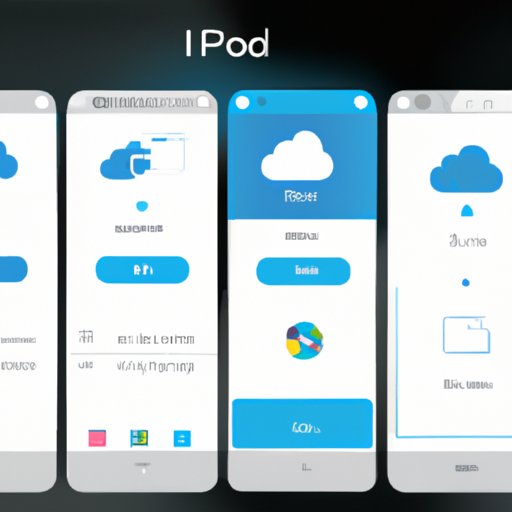
Using iCloud photos is a great way to keep all of your photos and videos safe and secure in one place. But accessing those photos can be a bit tricky. This article provides a step-by-step guide on how to access iCloud photos, from creating an Apple ID and enabling iCloud Photo Library to downloading the iCloud Control Panel for Windows and setting up iCloud on your iOS device.
Create an Apple ID and Use iCloud Photo Library
The first step in accessing iCloud photos is to create an Apple ID. An Apple ID is required to use iCloud, so if you don’t already have one, you’ll need to sign up for one. You can do this quickly and easily by visiting the Apple ID website and following the instructions.
Once you’ve created an Apple ID, you’ll need to enable iCloud Photo Library. This will allow you to store your photos and videos in iCloud and access them from any device that has an internet connection. To do this, open the Settings app on your iOS device and select “iCloud”, then toggle the “iCloud Photo Library” switch to “on”.
Download the iCloud Control Panel for Windows
If you’re using a Windows computer, you’ll need to download the iCloud Control Panel to access your photos. The Control Panel allows you to sync your photos and videos with iCloud and access them from any device. To download the Control Panel, visit the iCloud website and follow the instructions.
Once the Control Panel is installed, you can access your photos by opening the Control Panel and selecting the “Photos” tab. Here, you’ll find all of your photos and videos stored in iCloud. You can view and download them directly from here.

Set Up iCloud on Your iOS Device
If you’re using an iOS device, you can access your photos directly from your device. First, you’ll need to set up iCloud on your device. To do this, open the Settings app and select “iCloud”. Then, enter your Apple ID and password and toggle the “iCloud Photo Library” switch to “on”.
Once iCloud is set up, you can access your photos by opening the Photos app. All of your photos and videos stored in iCloud will be displayed here. You can view and download them directly from here.

Access iCloud Photos Via a Web Browser
You can also access your iCloud photos via a web browser. To do this, simply log into your iCloud account at www.icloud.com. Once logged in, select the “Photos” tab and you’ll find all of your photos and videos stored in iCloud. You can view and download them directly from here.
Use Third-Party Cloud Storage Services
If you’d like to access your photos from other devices or share them with friends and family, you may want to consider using a third-party cloud storage service. There are many different options available, each with their own features and pricing plans. It’s important to do your research and choose the one that best suits your needs.
Once you’ve chosen a cloud storage service, you’ll need to transfer your photos from iCloud to the third-party service. You can do this by downloading the photos from iCloud and then uploading them to the third-party service. Alternatively, you can use the iCloud Backup feature to download all of your photos at once.

Transfer Photos from iCloud to Local Storage
If you want to keep a backup of your photos and videos, you may want to consider transferring them from iCloud to local storage. This can be done by using the iCloud Backup feature to download all of your photos at once. Alternatively, you can manually transfer photos from iCloud to your computer or other local storage device.
Use AirDrop or Airdrop Alternatives
AirDrop is a great way to quickly and easily transfer photos from your iOS device to another iOS device. To use AirDrop, both devices must have AirDrop enabled and be within close proximity to each other. Once you’ve enabled AirDrop, you can select the photos you want to transfer and tap the “Share” button to send them.
If AirDrop isn’t available, there are several alternatives you can use. These include Bluetooth, Wi-Fi Direct, and file transfer apps. Each of these options has its own advantages and disadvantages, so it’s important to do your research and choose the one that best fits your needs.
Conclusion
In conclusion, accessing iCloud photos is easy once you know how. To access your photos, you’ll need to create an Apple ID and enable iCloud Photo Library. You can then download the iCloud Control Panel for Windows and set up iCloud on your iOS device. Or, you can access your photos via a web browser or use a third-party cloud storage service. Finally, you can transfer photos from iCloud to local storage or use AirDrop or airdrop alternatives.
By following these steps, you should have no trouble accessing your iCloud photos. With a little bit of effort, you can ensure that all of your photos and videos are safe and secure in one place.
(Note: Is this article not meeting your expectations? Do you have knowledge or insights to share? Unlock new opportunities and expand your reach by joining our authors team. Click Registration to join us and share your expertise with our readers.)