

Introduction
An iPhone update is an important part of keeping your device running smoothly and securely. By updating your iPhone, you can access the latest features, bug fixes, performance improvements, and security patches. In this article, we’ll explain how to update your iPhone step by step.
Use iTunes to Update Your iPhone
If you’re using a Mac or PC, you can use iTunes to update your iPhone. First, make sure you have the latest version of iTunes installed on your computer. If you don’t, head to the Apple website to download it.
Once you have the latest version of iTunes, connect your iPhone to your computer and open iTunes. Select your device in the sidebar, then select “Check for Updates” in the Summary tab. If an update is available, follow the on-screen instructions to install it.
Install iOS Updates Wirelessly
You can also install iOS updates wirelessly, which is the easiest and quickest way to update your device. Before you start, make sure your device is compatible with wireless updates. You can check this on the Apple website.
To install the update, open Settings on your iPhone and select “General”. Tap “Software Update” and follow the on-screen instructions. Make sure your iPhone is connected to a Wi-Fi network and has at least 50% battery before you begin.
Back Up Your iPhone Before Updating
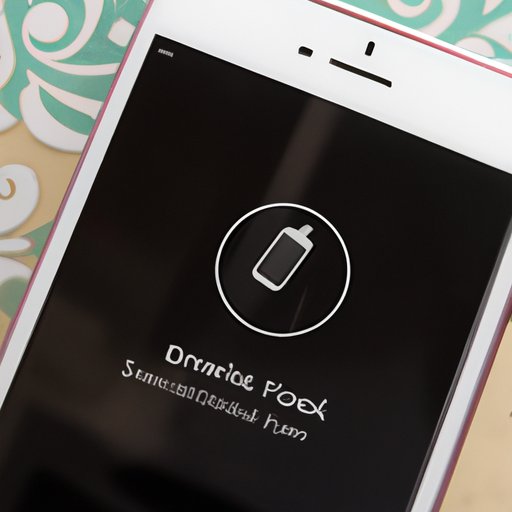
Before you update your iPhone, it’s important to back up your data. This will ensure that none of your photos, videos, messages, or other files are lost during the update process. To back up your device, you can use iCloud or iTunes. With iCloud, you can back up your data wirelessly, while iTunes requires you to connect your iPhone to your computer.
To back up your device with iCloud, open Settings and select “iCloud”. Then tap “Back Up Now” and wait for the process to complete. To back up your device with iTunes, connect your iPhone to your computer and open iTunes. Select your device in the sidebar, then select “Back Up Now” in the Summary tab.
Download the Latest iOS Software
To get the latest version of iOS, open Settings on your iPhone and select “General”. Tap “Software Update” and follow the on-screen instructions. The update may take some time, so make sure your iPhone is connected to a Wi-Fi network and has at least 50% battery before you begin.

Update Apps on Your iPhone
It’s also important to keep your apps up to date. To do this, open the App Store on your iPhone and tap “Updates”. You’ll see a list of apps that need to be updated. Tap “Update” next to each one to install the latest version.
Make Sure Your iPhone is Compatible with the Latest iOS Version
Before you update your iPhone, make sure it is compatible with the latest version of iOS. You can check this on the Apple website. If your device is not supported, you may not be able to update your iPhone.
Check for New Carrier Settings After an Update
After you update your iPhone, open Settings and select “General”. Tap “About” and look for a notification about new carrier settings. If there is one, follow the on-screen instructions to install the new settings.
Conclusion
Updating your iPhone is an important part of keeping your device running smoothly and securely. In this article, we’ve explained how to update your iPhone step by step. First, make sure you have the latest version of iTunes installed on your computer. Then, back up your device using iCloud or iTunes. Next, open Settings and select “Software Update” to install the latest version of iOS. Finally, open the App Store and tap “Update” next to each app to get the latest version. By following these steps, you can enjoy the latest features, bug fixes, performance improvements, and security patches.
(Note: Is this article not meeting your expectations? Do you have knowledge or insights to share? Unlock new opportunities and expand your reach by joining our authors team. Click Registration to join us and share your expertise with our readers.)